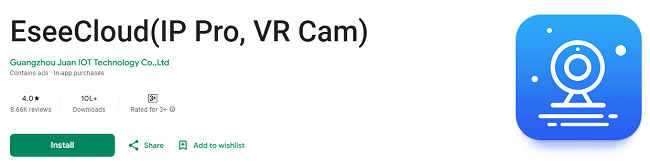
How to Login & Monitor Cameras Using EseeCloud App?
EseeCloud is a powerful and user-friendly video surveillance app that allows you to monitor IP cameras, NVRs (Network Video Recorders), and VR cams from your mobile device or desktop. Whether you're using EseeCloud for home security, business surveillance, or any other monitoring needs, the app offers seamless functionality for live streaming, video playback, and advanced camera controls.
This comprehensive guide will walk you through how to login to the EseeCloud app and use it to monitor your cameras. Whether you’re using an Android device, iOS device, Windows PC, or Mac, this guide covers all the essential steps for getting started with EseeCloud, configuring your cameras, and utilizing the full features of the app.
What is EseeCloud?
Before diving into the usage guide, it's important to understand what EseeCloud offers:
EseeCloud is a video surveillance app designed to help users monitor their connected devices—such as IP cameras, DVRs, and NVRs—from anywhere in the world. The app supports a wide range of devices, including Wi-Fi cameras, wired security systems, and even VR cameras, making it an ideal solution for both home and business security.
Key Features of EseeCloud:
Live Video Streaming: View real-time footage from your cameras anytime, anywhere.
Cloud Storage: Store video recordings in the cloud for easy access and backup.
Motion Detection Alerts: Receive notifications when motion is detected by your cameras.
Two-Way Audio: Talk through the camera (for supported devices).
Playback Functionality: Access recorded footage for later viewing.
Multi-Camera View: View multiple cameras simultaneously with a split-screen layout.
Device Management: Add, remove, and manage your connected devices directly from the app.
How to Login to the EseeCloud App?
Step 1: Install the EseeCloud App
Before you can log in, ensure that you have the EseeCloud app installed on your device. The app is available on both Android and iOS platforms, and also has desktop versions for Windows and Mac.
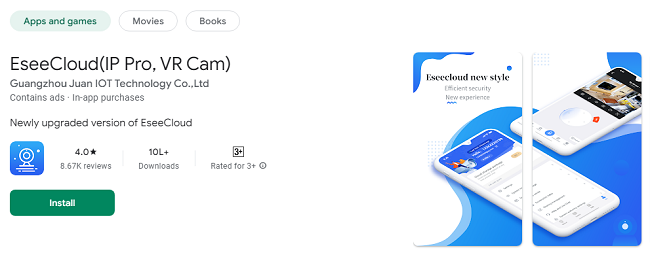
For Android: Open the Google Play Store, search for EseeCloud, and click Install.
For iOS: Open the App Store, search for EseeCloud, and tap Get.
For Windows PC or Mac: Download the desktop version of EseeCloud from the official website and follow the installation process.
Step 2: Open the EseeCloud App
After installing the app, find the EseeCloud icon on your home screen (for mobile devices) or desktop (for PC/Mac) and click to open it.
Step 3: Create an Account or Log in
When you first open the app, you’ll be prompted to either log in with your existing account or create a new one.
Logging in:
Username/Email: Enter the username or email address you registered with.
Password: Enter the corresponding password for your account.
Click Log In to access the main interface of the app.
Creating a New Account:
If you don’t have an EseeCloud account, follow these steps:
Tap or click on the Sign Up or Create Account option.
Provide your email address, create a password, and choose a username.
Follow any on-screen instructions for account verification (like confirming your email).
Once verified, log in using your new account credentials.
How to Add and Configure Cameras in EseeCloud?
Step 1: Add a Device (Camera, NVR, or DVR)
Once you’re logged in, the next step is to add your cameras or NVR/DVR systems to the EseeCloud app for monitoring. Follow these steps to connect your cameras:
Tap the + Icon: On the home screen of the EseeCloud app, look for the “+” icon or the “Add Device” button and tap it.
Scan QR Code: Many EseeCloud-compatible devices have a unique QR code that can be scanned to quickly add them to your account.
Use the Scan QR Code feature in the app to scan the code on your camera’s body or its manual.
Manual Device Entry: If you don’t have a QR code or prefer to enter the details manually, choose the Manual Add option.
Enter the device ID, which is typically found on the camera itself.
Provide the necessary network settings (Wi-Fi credentials if using wireless cameras, or IP addresses for wired devices).
Wi-Fi Configuration: For wireless cameras, you’ll need to enter your Wi-Fi network name (SSID) and password for the camera to connect to your local network.
Step 2: Configure Camera Settings
Once your device is added, you can adjust several settings to suit your needs:
Camera Name: Customize the name of your camera for easier identification (e.g., “Living Room Cam,” “Front Door Cam,” etc.).
Motion Detection: Enable or adjust motion detection sensitivity to receive alerts when there’s movement detected by your camera.
Recording Settings: You can set up specific recording schedules or configure continuous recording, depending on the camera’s capabilities.
Two-Way Audio: If your camera supports two-way audio, enable this feature to talk and listen through the camera’s microphone and speaker.
Cloud Storage: Set up cloud storage to automatically upload and save video footage for future viewing and backup.
After configuring the settings, click Save to finalize your camera setup.
How to Monitor Cameras Using EseeCloud App?
Once your cameras are connected and configured, you can start monitoring them using the EseeCloud app. Here’s how:
1. Live Video Streaming
EseeCloud allows you to view live video streams from your connected cameras in real-time. To start monitoring:
Select a Camera: From the home screen, tap or click on the camera you want to view.
View Live Feed: The app will open a live video feed from that camera, and you can see everything happening in real-time.
Adjust Settings: You can use on-screen controls to adjust the volume, zoom in/out, or change the video quality if supported by your camera.
2. Multi-Camera View
If you have multiple cameras set up, EseeCloud lets you view multiple feeds at the same time.
Multi-View Mode: On the home screen, tap or click on the multi-camera view icon (usually a 4-grid icon or something similar).
Select Cameras: Choose up to four cameras (depending on the app’s interface) that you want to monitor simultaneously.
Monitor Multiple Locations: This is ideal for monitoring different areas, like the front door, backyard, and living room all at once.
3. Audio and Video Controls
Two-Way Audio: If your camera supports two-way audio, tap on the microphone icon to speak through the camera or listen to the surroundings.
Zoom: For cameras that support zooming, use the pinch-to-zoom gesture on mobile devices or mouse wheel on desktops to zoom in on specific areas.
4. Recording and Snapshot
You can take snapshots or start recording the live feed for later reference.
Snapshot: Tap or click the camera icon to take a snapshot of the live feed.
Record Video: Tap or click the record button (usually a red dot) to start recording the live video. Tap again to stop recording.
How to Playback Recorded Video?
One of the great features of EseeCloud is the ability to view recorded footage from your cameras. Here’s how to access and play back recordings:
Step 1: Access the Playback Section
From the main dashboard of the app, tap or click the Playback button, usually located in the top menu or on the camera settings page.
The app will show you a timeline of recorded footage based on the device you select.
Step 2: Choose a Date and Time
Use the calendar or timeline slider to choose the date and time range for the footage you want to view.
Tap or click on the corresponding date and time to view the recordings.
Step 3: Filter by Motion Events
If your camera is set to record only when motion is detected, you can filter the footage by motion events to find important clips.
Enable motion event filtering in the playback settings to highlight and quickly jump to clips where motion was detected.
Step 4: Download or Backup Recordings
You can download specific recordings for backup or to save them for future reference. Tap or click the download icon to store the footage on your device.
How to Manage Multiple Cameras and Devices?
EseeCloud allows you to manage multiple cameras and devices from one account. Here’s how to keep everything organized:
Step 1: Add Additional Devices
Tap or click the “+” icon or Add Device button.
Follow the same steps as before to add more cameras or devices, such as additional IP cameras, NVR systems, or DVRs.
Step 2: Organize Your Devices
Name your devices according to their location for easier identification.
Create custom groups if you have many devices. For example, group cameras by floors, rooms, or areas.
Step 3: Monitor and Control Devices Simultaneously
Use the multi-device view to monitor several devices at once.
Control each device’s settings from the Device Management section within the app.
Troubleshooting Common Issues
While EseeCloud is generally easy to use, you might encounter some common issues. Here are a few troubleshooting tips:
1. Unable to Log In
Double-check your username and password.
Ensure you have a stable internet connection.
If you forgot your password, use the forgot password link to reset it.
2. Camera Not Showing Live Feed
Ensure the camera is properly connected to your network.
Check if the camera has power and is working.
Restart the camera and the EseeCloud app.
3. Video Playback Is Lagging
Ensure you have a fast and stable internet connection for smooth playback.
Lower the video quality settings to reduce buffering.
4. No Audio
Check if your camera supports two-way audio.
Ensure the microphone and speaker settings are enabled in the app.
Conclusion
The EseeCloud app is an incredibly efficient and feature-packed tool for monitoring your cameras and security systems. By following this guide, you now know how to login, add devices, monitor live footage, view recorded video, and manage multiple cameras from the EseeCloud App. Whether you’re using EseeCloud for home security or business surveillance, the app’s intuitive interface and robust features will help you stay connected to your property at all times.
With its ability to stream live video, provide motion detection alerts, offer cloud storage, and enable remote playback, EseeCloud remains a top choice for modern surveillance needs.
Updates