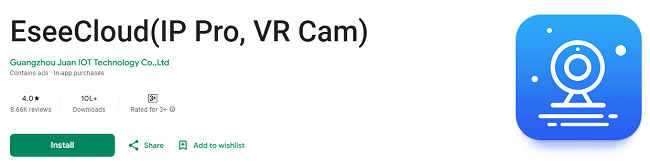
How to Setup EseeCloud App for Camera Monitoring?
Monitoring your surveillance cameras is a critical aspect of ensuring the safety and security of your property, and the EseeCloud app makes this task easier than ever. With its user-friendly interface and advanced features, EseeCloud allows you to access live feeds, playback recorded footage, and manage multiple cameras from a single platform. This comprehensive guide will walk you through the process of setting up and effectively using the EseeCloud app for camera monitoring.
Why Choose the EseeCloud App for Camera Monitoring?
The EseeCloud app is designed to provide seamless integration with IP cameras and DVR systems. Here’s why it’s a preferred choice for many:
User-Friendly Interface: Navigate the app with ease, even if you’re new to surveillance systems.
Remote Access: Monitor your cameras from anywhere using your mobile device or PC.
Real-Time Alerts: Stay updated with instant notifications for motion detection and other activities.
Multi-Camera Support: Manage multiple cameras simultaneously, making it ideal for homes, offices, and businesses.
Customizable Features: Adjust video quality, set recording schedules, and configure notifications to suit your needs.
Prerequisites for Setting Up EseeCloud
Before you begin, ensure you have the following:
Compatible Devices: A smartphone, tablet, or PC with the EseeCloud app installed.
Surveillance Cameras: IP cameras or DVR systems compatible with EseeCloud.
Stable Internet Connection: Required for syncing devices and accessing live feeds.
Account Credentials: Create an EseeCloud account if you don’t already have one.
How to Download & Install EseeCloud App?
To get started, download and install the EseeCloud app on your preferred device:
For Mobile Devices (Android/iOS):
Open the Google Play Store (Android) or App Store (iOS).
Search for “EseeCloud.”
Tap on the official app and press Install or Get.
Once installed, open the app and log in or sign up.
For Windows PC:
Visit the official EseeCloud website.
Download the software for Windows.
Run the installer and follow the setup instructions.
Launch the application and sign in with your account.
How To Setup EseeCloud App for Camera Monitoring?
After installing the app, follow these steps to configure it for monitoring your cameras:
Step 1: Add Your Cameras
Open the EseeCloud app and log in.
Navigate to the Add Device option.
Choose your connection method:
QR Code: Use your phone’s camera to scan the QR code on your surveillance device.
Manual Entry: Enter the camera’s device ID and password manually.
Confirm the connection and wait for the app to sync with the camera.
Step 2: Configure Basic Settings
Access the settings menu for your added device.
Adjust basic parameters such as camera name, time zone, and resolution.
Save your changes.
Step 3: Test the Live Feed
Go to the home screen of the app.
Select the added camera to view its live feed.
Ensure the video stream is clear and the camera angle is correctly positioned.
Key Features of EseeCloud for Camera Monitoring
The EseeCloud app offers a variety of features to enhance your monitoring experience. Here’s how to use them effectively:
1. Live Streaming
Access real-time video feeds from all connected cameras.
Use the multi-view option to monitor multiple cameras simultaneously.
Tap on individual feeds to enlarge them or switch between cameras.
2. Playback Recorded Footage
Navigate to the Playback tab in the app.
Select the desired camera and specify the date and time.
Review recorded footage and save clips for future reference.
3. Motion Detection Alerts
Enable motion detection in the settings menu.
Adjust sensitivity levels to reduce false alarms.
Receive instant push notifications on your device when motion is detected.
4. Two-Way Audio
If your camera supports audio, use the two-way audio feature to communicate through the app.
Speak directly to individuals near the camera or issue warnings remotely.
5. Cloud Storage
Opt for cloud storage to securely save your recordings.
Access stored footage anytime, even if your local storage is full.
Tips for Effective Camera Monitoring with EseeCloud
Optimize Camera Placement: Position your cameras to cover key areas with minimal blind spots.
Regularly Update the App: Keep the app updated to access new features and security improvements.
Secure Your Account: Use a strong password and enable two-factor authentication.
Backup Important Footage: Save critical recordings to cloud storage or an external drive.
Test Notifications: Ensure you receive timely alerts for motion detection or other triggers.
Troubleshooting Common Issues
Issue 1: Camera Not Connecting
Solution: Verify the device ID and password. Ensure your camera and app are on the same network.
Issue 2: Live Feed Not Loading
Solution: Check your internet connection and restart the app. Update the app if necessary.
Issue 3: Notifications Not Working
Solution: Enable push notifications in the app settings and ensure your device allows app notifications.
Issue 4: Poor Video Quality
Solution: Adjust the resolution settings in the app or switch to a stronger network connection.
Advanced Features of EseeCloud
For users looking to maximize the app’s potential, explore these advanced features:
1. Schedule Recordings
Set up recording schedules based on your routine.
Configure cameras to record only during specific hours to save storage.
2. Share Access
Share camera access with family or team members through the app.
Control permissions to ensure privacy and security.
3. Firmware Updates
Use the app to update your camera’s firmware for enhanced performance.
4. Integrate Multiple Locations
Manage cameras from multiple properties within the same app.
Categorize and label cameras for easy identification.
Monitoring Cameras on Multiple Devices
EseeCloud allows you to monitor cameras on various devices simultaneously. Here’s how:
Mobile Devices: Install the app on smartphones and tablets for on-the-go access.
PC Software: Use the EseeCloud software on Windows for a larger viewing interface.
Web Browser: Access camera feeds through the EseeCloud web portal for added convenience.
Conclusion
Setting up and using the EseeCloud app for camera monitoring is an excellent way to enhance your security system’s effectiveness. With features like live streaming, motion detection alerts, and cloud storage, EseeCloud simplifies the process of managing and monitoring multiple cameras. Follow the steps outlined in this guide to configure your system and take full advantage of the app’s capabilities. Start monitoring your property with confidence today!
Updates